Composing System Prompts

CUNY AI Lab

Alt text: CUNY AI Lab

Led by Zach Muhlbauer

New Media Lab · Room 7388.01
CUNY Graduate Center

https://cuny-ai-lab.github.io/sandbox-series/basics

Workshop Roadmap

  1. Composing System PromptsConfigure model behavior with system prompts.
  2. Curating knowledge collectionsOrganize source documents in knowledge collections.
  3. Configuring skills and toolsExtend model capabilities with skills and tools.

Workshop Agenda

  1. Introduce yourselves
  2. Request access and sign in
  3. Compare model outputs
  4. Revise system prompts
  5. Create custom models

Introductions

What is your name, pronouns, and role at CUNY?

What brings you to this workshop today?

Sandbox Access

System Prompts

System prompts are setup instructions that describe how a model should behave.

User Prompts

Questions or tasks you enter in chat.

Custom Models

You create a custom model by choosing a base model, such as Gemma, and adding instructions and documents for it to use.

Chat Features

Upload Files (+)
Attach images, PDFs, or documents.
Integrations
Enable tools that perform operations and skills that give reusable instructions.
Message actions
Find actions beneath each response to copy, edit, or regenerate it. Open More (⋯) for additional actions.

Select Models

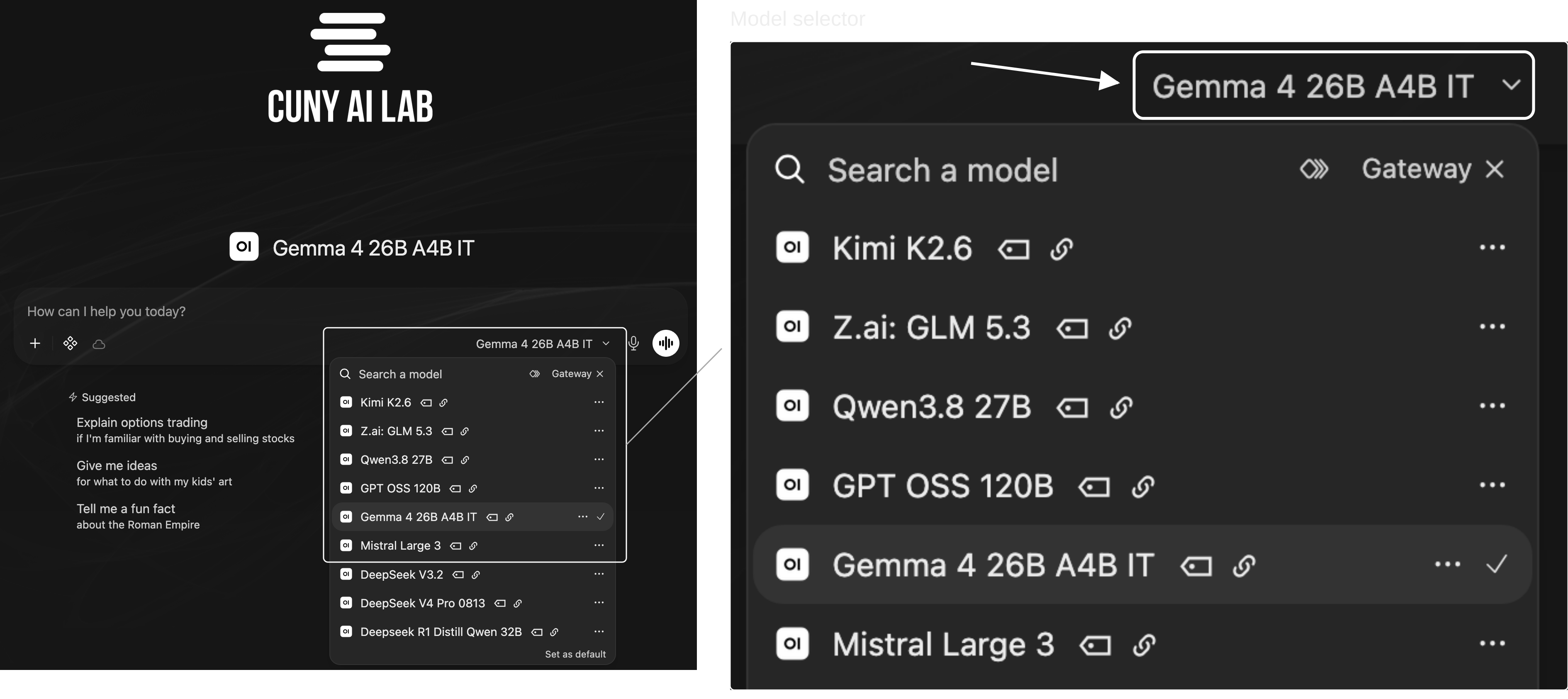
Sandbox logo, message box, and Gateway model selector; enlarged detail shows current model choices with model ID outlined and marked by an arrow.

Alt text: Sandbox logo, message box, and Gateway model selector; enlarged detail shows current model choices with model ID outlined and marked by an arrow.

Find model selector in bottom right of message box, then select Gemma 4 26B A4B IT.

Compare Models

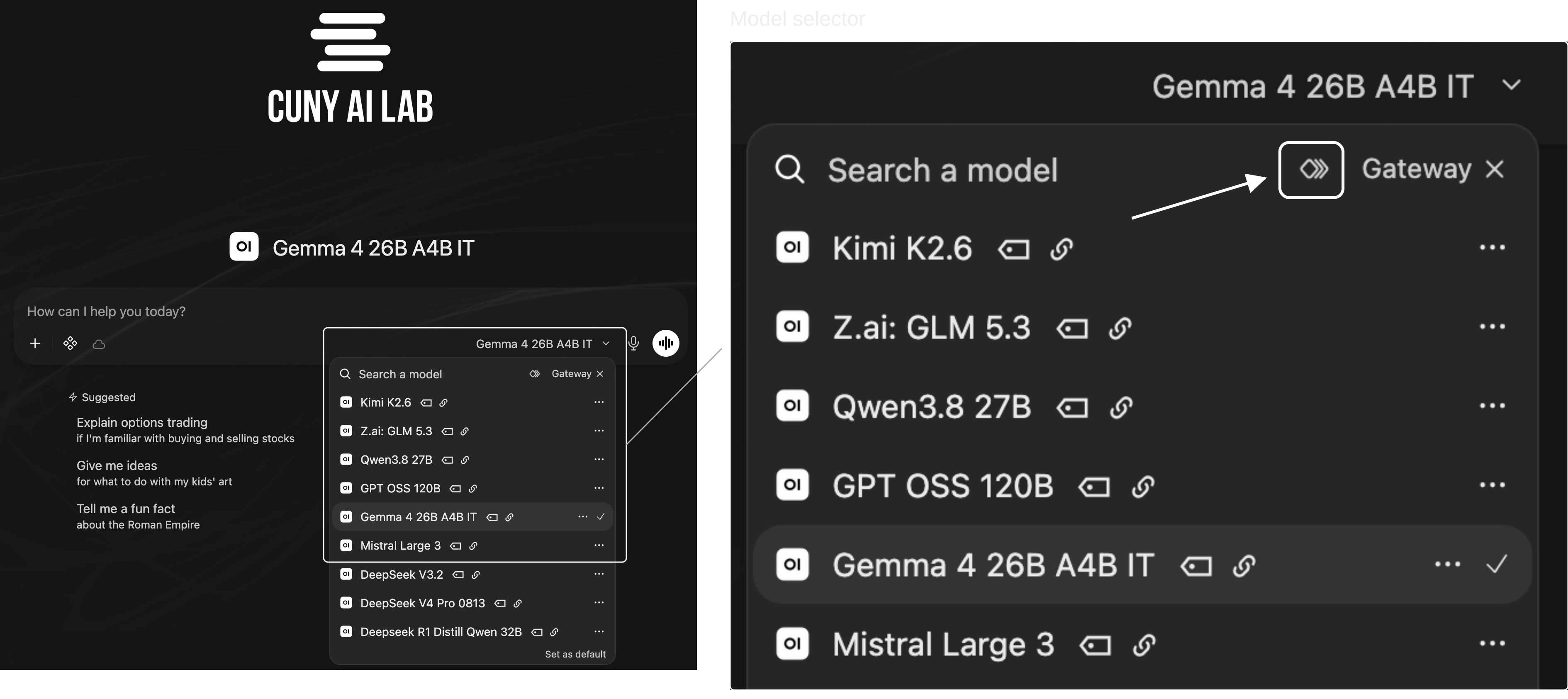
Sandbox logo, message box, and Gateway model selector; enlarged detail shows Compare beside search field outlined and marked by an arrow.

Alt text: Sandbox logo, message box, and Gateway model selector; enlarged detail shows Compare beside search field outlined and marked by an arrow.

Reopen model selector and select Compare beside search field. Choose Gemma and another model, such as Mistral Large 3.

Who Was Late?

Compare how two models interpret this sentence.

The nurse yelled at the doctor because she was late. Who was late?

Send this question to both models.

Winograd Schema Challenge

This challenge tests how models interpret ambiguous pronouns using context and common-sense reasoning.

In our question, either person could be late.

  • Which person does each model choose?
  • What assumption supports its answer?

Compare Outputs

Consider this question.

The car wash is 50 meters from me. Should I walk or take the car? Explain your reasoning.

What do you think this person wants to accomplish?

Gemma vs. Qwen

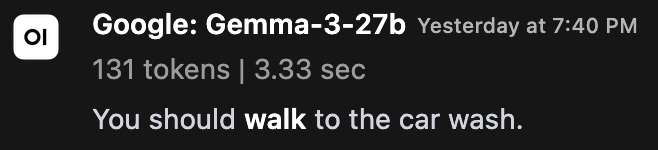
Gemma’s Response

Gemma 3 27B response recommending walking, with model name and generation time.

Alt text: Gemma 3 27B response recommending walking, with model name and generation time.

Qwen’s Response
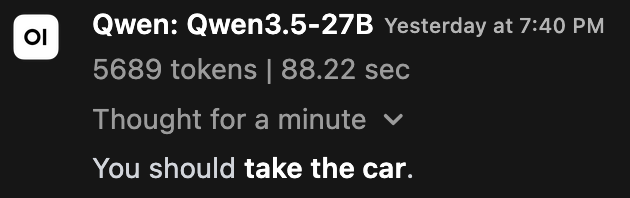
Qwen3.5 27B response recommending driving, with model name and generation time.

Alt text: Qwen3.5 27B response recommending driving, with model name and generation time.

Going to the Car Wash

Start a new chat, select two models, and send this question.

The car wash is 50 meters from me. Should I walk or take the car? Explain your reasoning.

Add System Prompt

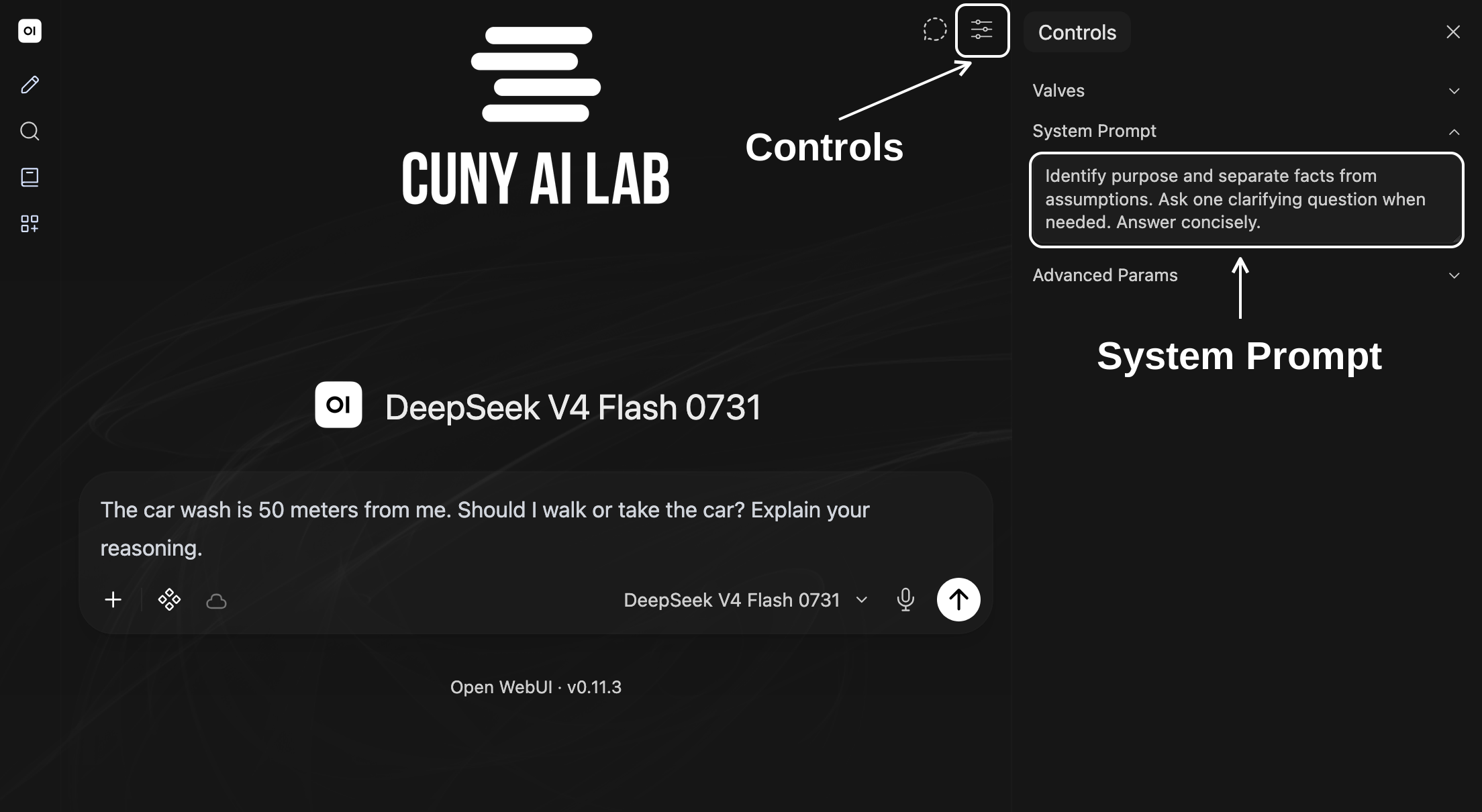
CUNY AI Lab logo, DeepSeek V4 Flash 0731, car wash question in message box, and short instructions in System Prompt; white annotations identify Controls button and populated System Prompt field.

Alt text: CUNY AI Lab logo, DeepSeek V4 Flash 0731, car wash question in message box, and short instructions in System Prompt; white annotations identify Controls button and populated System Prompt field.

Select Controls at top right of chat. Paste these instructions into System Prompt, then close Controls.

Identify purpose and separate facts from assumptions. Ask one clarifying question when needed. Answer concisely.

Regenerate Responses
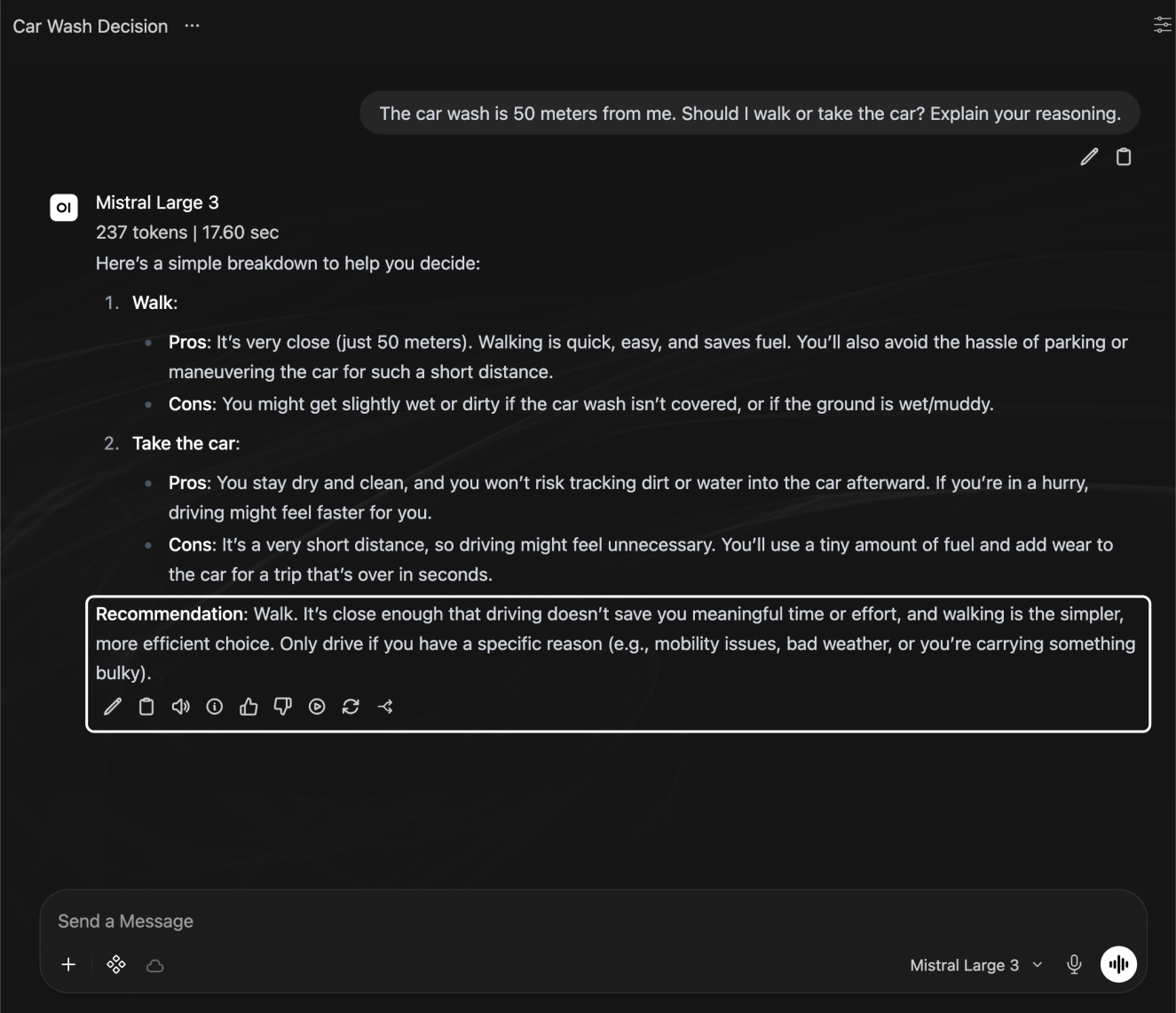
Mistral Large 3 response recommending walking, with original question and message box; white annotation marks response controls for Regenerate.
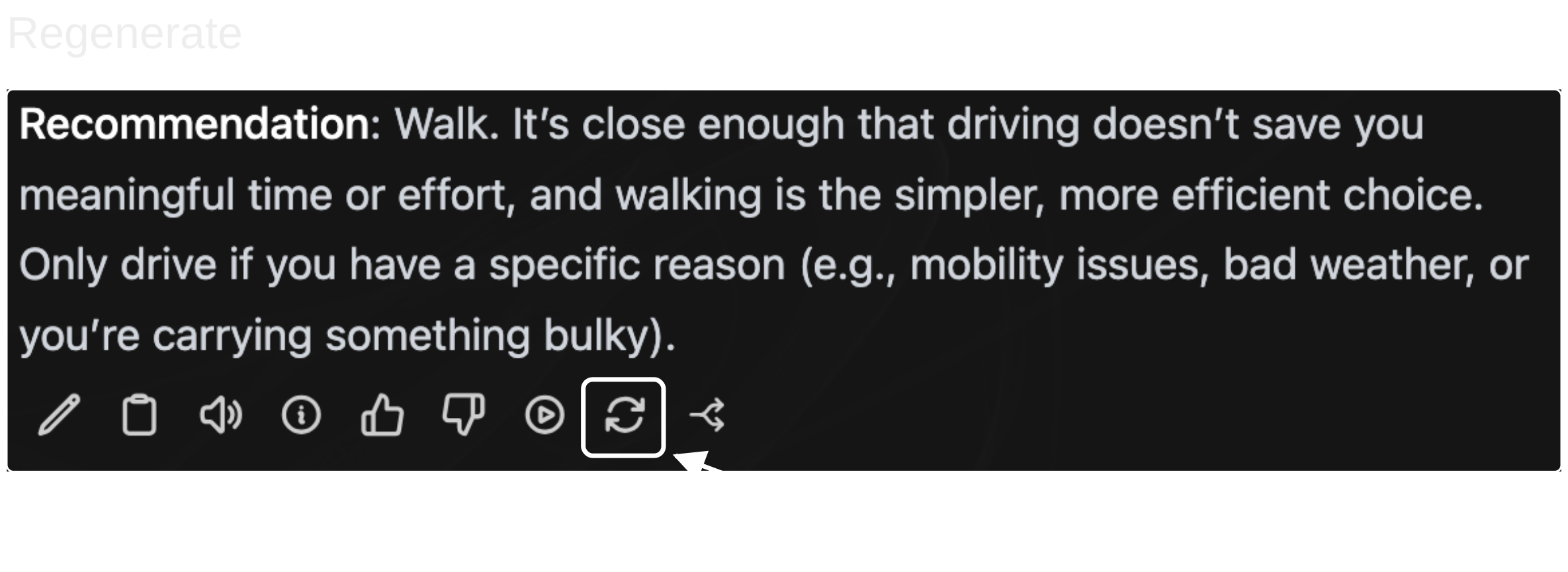
Alt text: Mistral Large 3 response recommending walking, with original question and message box; white annotation marks response controls for Regenerate.

Enlarged Mistral Large 3 response controls with Regenerate outlined and marked by an arrow.

Alt text: Enlarged Mistral Large 3 response controls with Regenerate outlined and marked by an arrow.

Select Regenerate beneath each original response, then choose Try Again. Keep your original question, selected models, and other settings unchanged.

Debrief Questions

  1. What changed in each model’s answer to your car wash question after you added system prompt instructions?
  2. Did either model ask about your purpose or explain its assumptions before recommending walking or driving?

Explore

Try Examples

Choose one example and experiment with it in chat.

Teaching

STEM Adventure Games

Explore scientific experiments through a text adventure with numbered choices.

Research

Compare Wikipedia Edits

Compare Wikipedia revisions and examine changes in wording, claims, and citations.

Review Settings

Review Base Model and System Prompt for your chosen example.

Find Purpose, Procedure, Constraints, and Format in its instructions.

Which instruction explains something you noticed in its response?

Clone Models

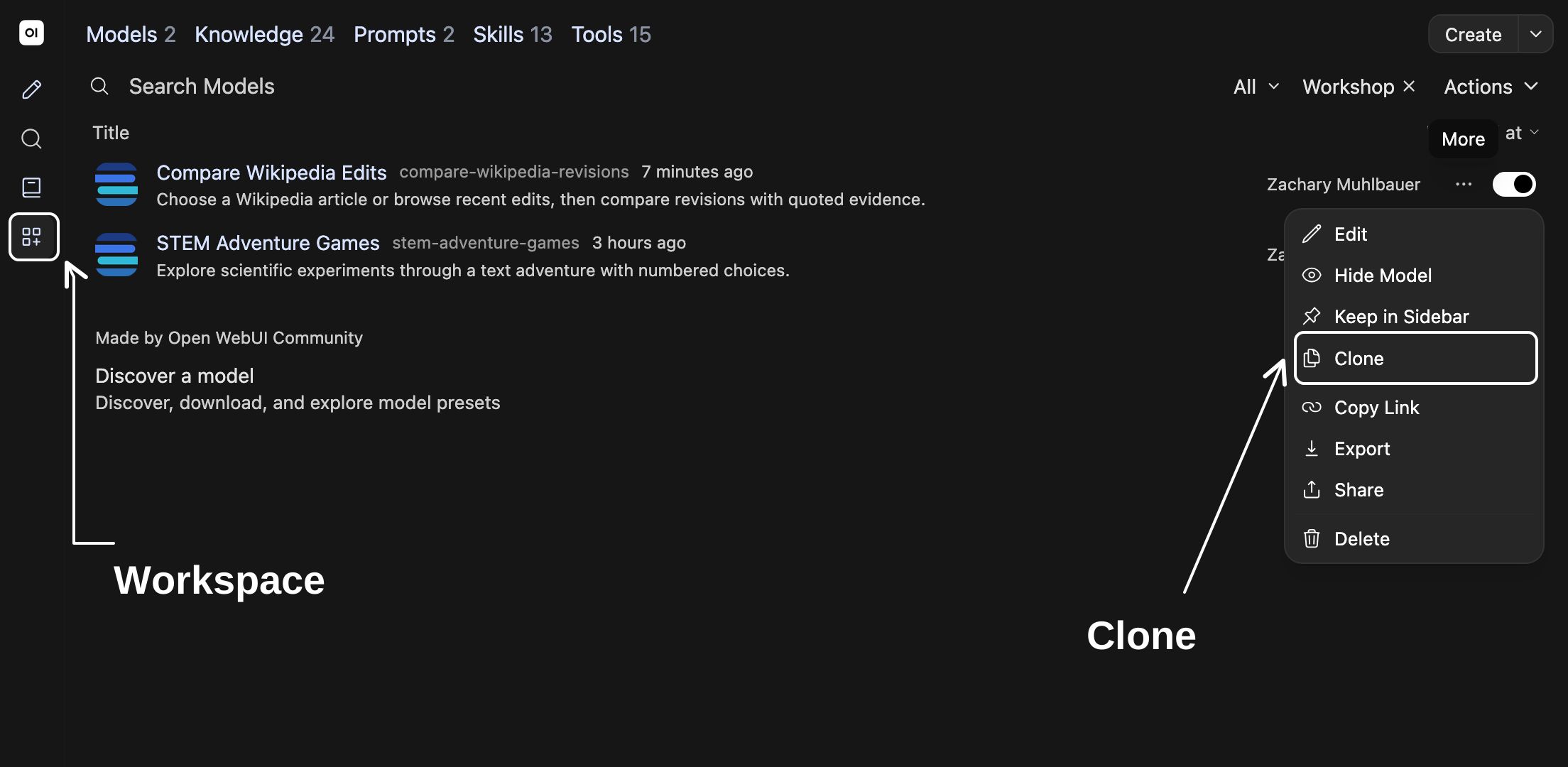
Workspace Models showing shared workshop examples; white annotation identifies Clone in More menu.

Alt text: Workspace Models showing shared workshop examples; white annotation identifies Clone in More menu.

Select Workspace in left sidebar, then Models. Open ⋯ beside your chosen example and select Clone.
  1. Rename your copy.
  2. Revise one instruction in System Prompt; keep Base Model and other settings unchanged.
  3. Scroll to bottom and select Save & Create.
  4. Open your copy in a new chat and repeat your original request.

Compare Configurations
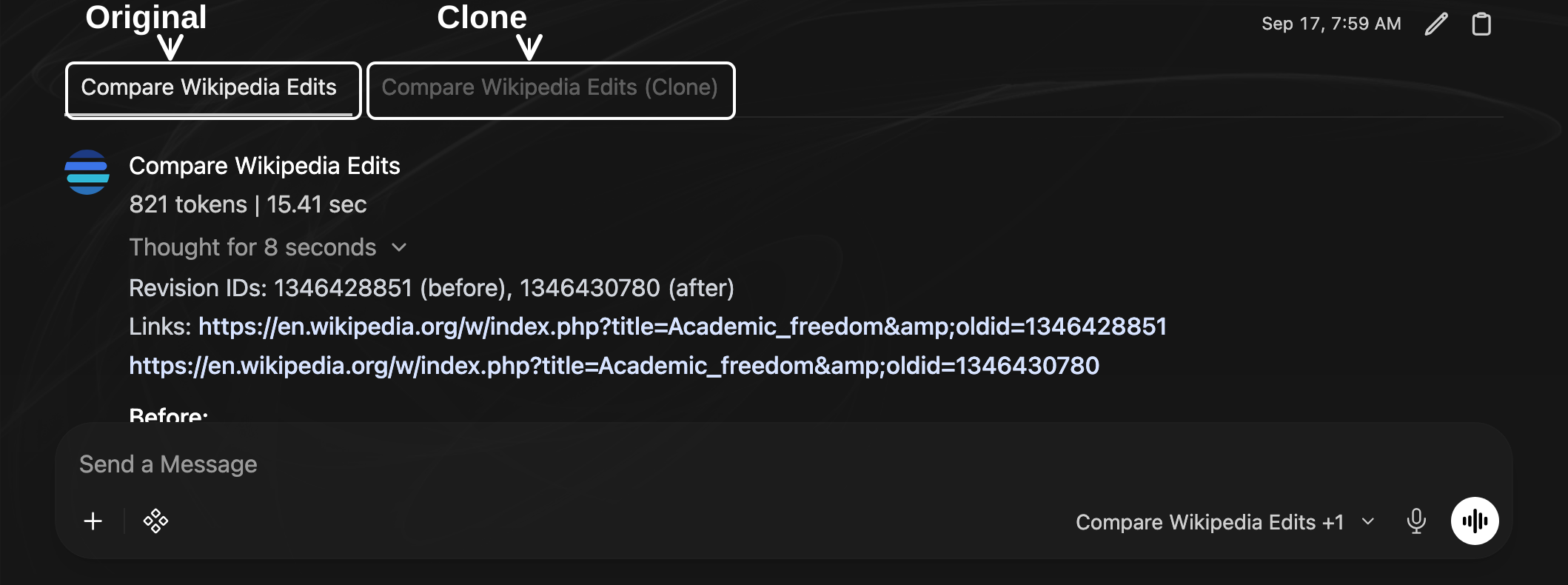
Sandbox comparison with tabs for original Compare Wikipedia Edits and its clone; white annotations identify both model names above original response. Message box remains visible.

Alt text: Sandbox comparison with tabs for original Compare Wikipedia Edits and its clone; white annotations identify both model names above original response. Message box remains visible.

Start a new chat. Select model ID on bottom right of message box, then Compare. Choose your original model and your copy.
  1. What did you change?
  2. Did your intended revision prove effective?
  3. How could you imagine testing custom models like this in the future?

Draft System Prompts

Use remaining time to begin drafting instructions for your own teaching or research task.

Purpose
What should your model help you accomplish?

Procedure
What steps should it follow?

Constraints
What limits should it observe?

Format
How should it present responses?

Create Models

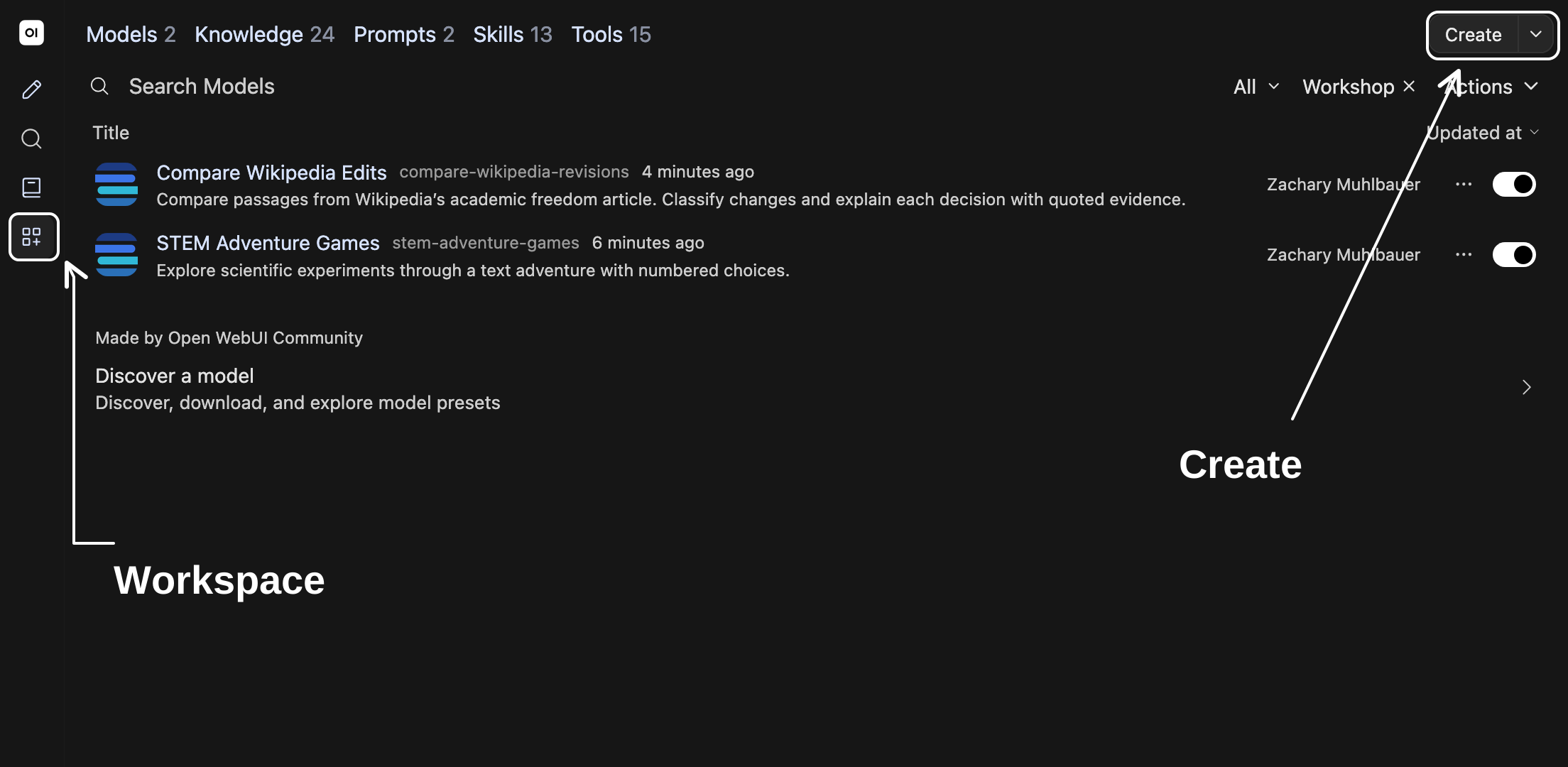
Workspace Models filtered to shared workshop examples, with Create button outlined and marked by an arrow.

Alt text: Workspace Models filtered to shared workshop examples, with Create button outlined and marked by an arrow.

Select Workspace → Models → Create to configure your own model.
  1. Name your configuration.
  2. Select Base Model and paste your draft into System Prompt.
  3. Scroll to bottom and select Save & Create.
  4. Start a new chat with your model and try one request.

Workshop Resources

Next Workshop

1 ➳ 2Curating knowledge collections

Open workshop ➳

A* · Creative Clawing