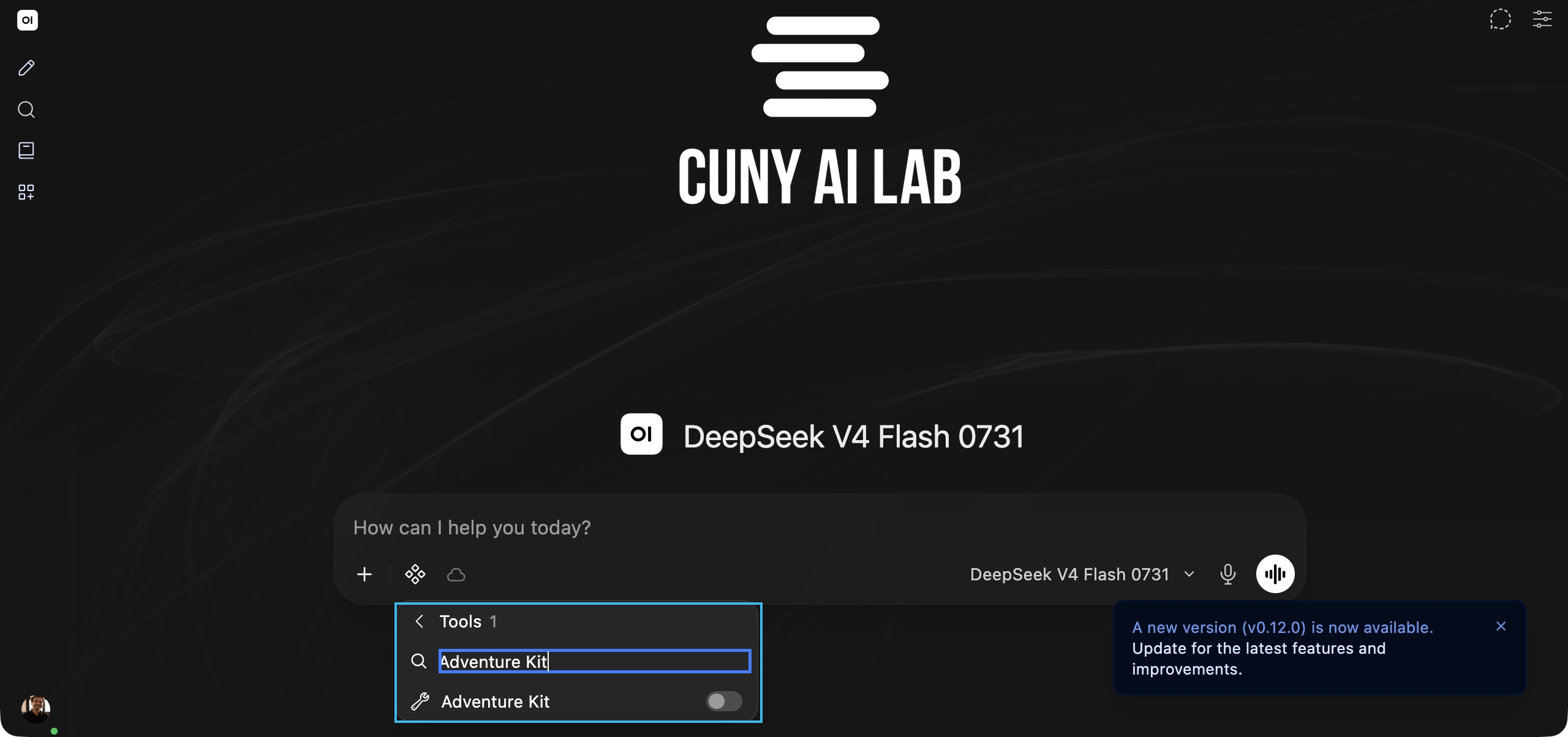
Skill first: explain, add, test · Tool next: explain, add, test · Support last: revise either item or create your own in the same activity
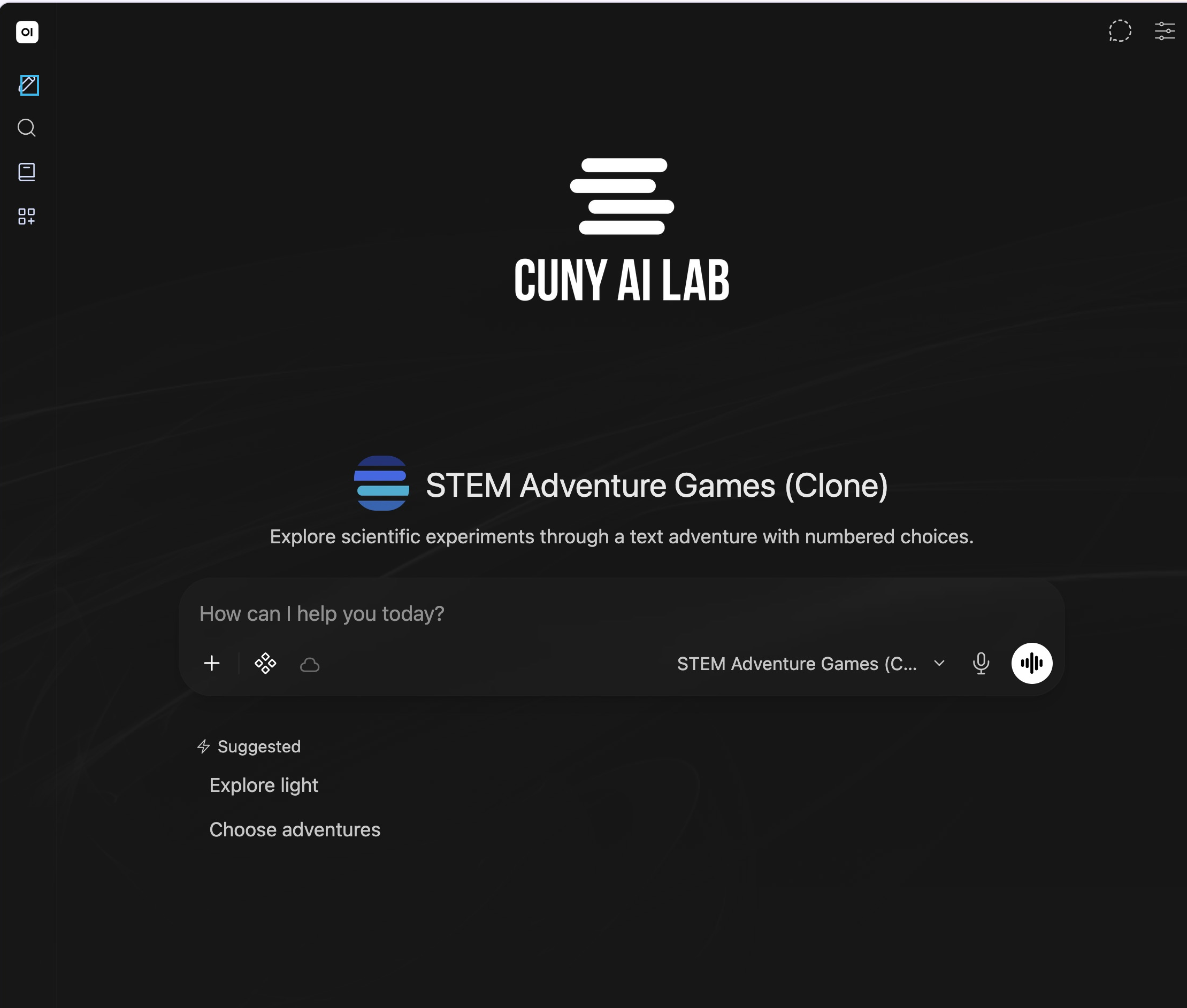
Continue Saved Model
- Click New Chat (pencil icon) in left sidebar
- Choose saved model from model ID at lower right of message box
Your model name should appear below message box
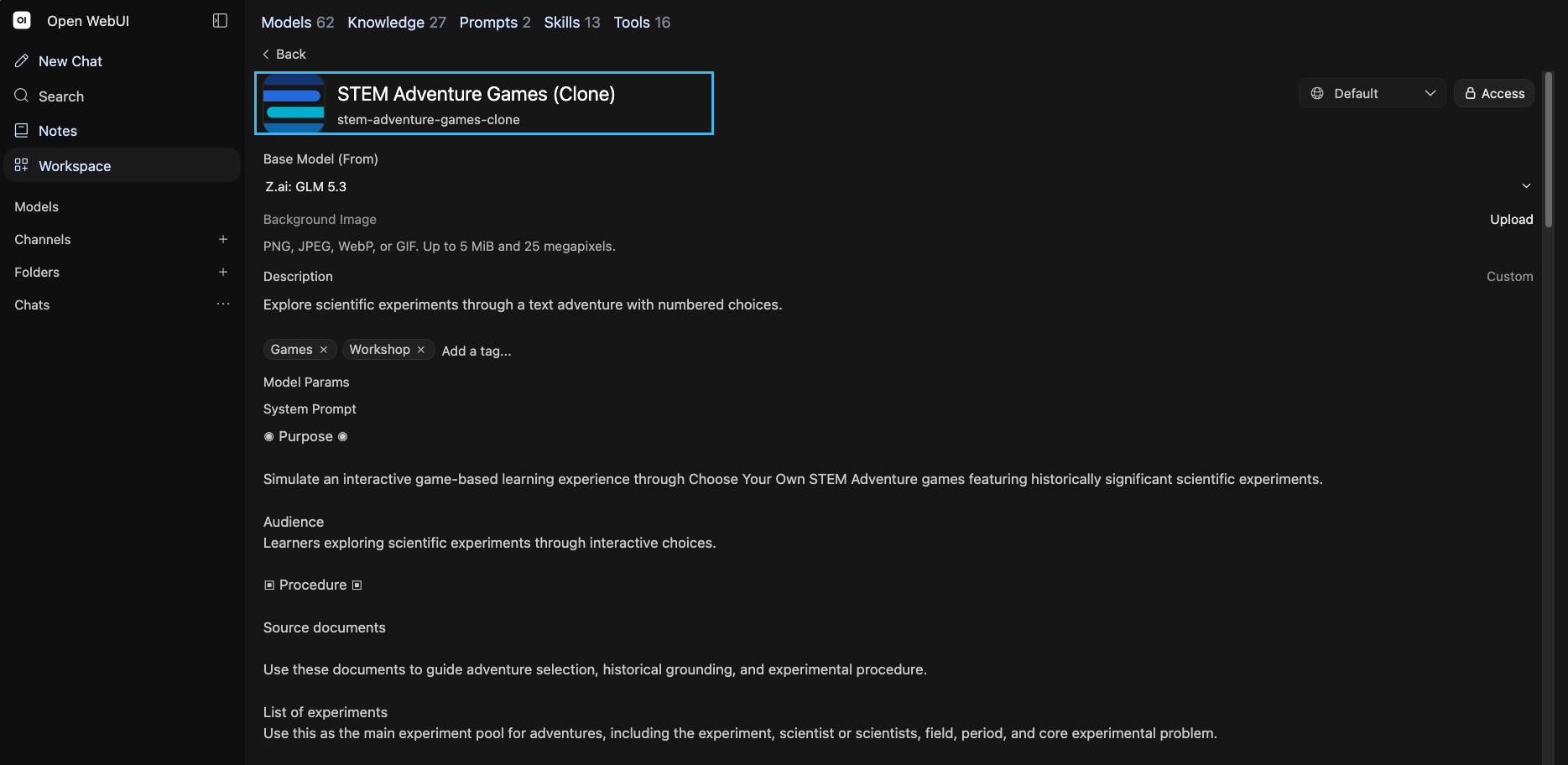
Clone Custom Model
- Open Workspace, then Models
- Find STEM Adventure Games, open menu, and choose Clone
- Enter your own name and model ID; review settings and save
Actual editor after Clone shown; Clone menu and model Save & Create are not in this replacement capture
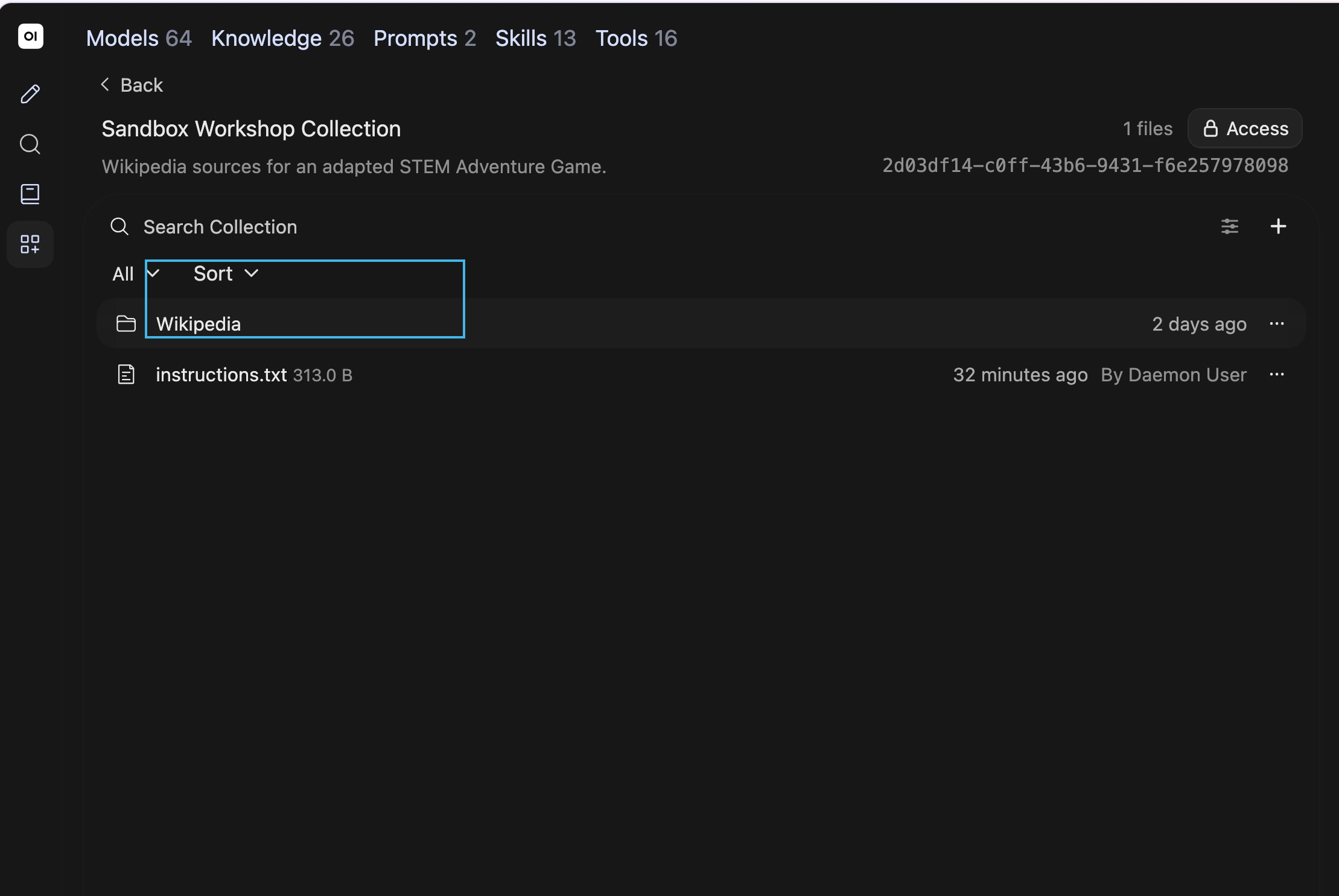
Use Earlier Sources
- Open your collection and instructions.txt
- Copy actual source passages and earlier scene
Preserve topic, audience, and source roles
Add Saved Skill
- Open Workspace → Models, then choose Edit from your model card’s menu
- Under Skills, click Select Skill and choose Adventure Panel Play
- Read its instructions and keep the model card open while selecting the tool
Test Your Skill
- Add the selected skill's name, ID, and task to your model's system prompt and save
- Ask the model to perform that task using an actual record
- Leave out required information and check for a question
- Ask to stop with goals unfinished
- Record whether the exact saved skill loaded and what its answer did
Inspect native view_skill loading or identify direct $ mention injection, then check observed behavior
Add Adventure Panel
- In the same model card, open Tools → Select Tool
- Choose Adventure Panel and confirm Adventure Panel Play remains selected
- Add the current prompt clause, then click Save & Update before testing
Run Your Adventure
- Start a fresh chat with your saved model
- Check that the opening follows your system prompt and required sources
- Inspect the saved skill and actual show_scene call, then the displayed panel
The panel displays the supplied scene. Its skill uses your prompt and established chat events to determine the next turn.
Record Your Play
- Select one choice in the panel
- Confirm Prompt from Embed if Open WebUI asks you to approve the numbered choice
- Check the user message and resulting scene
- If submission is interrupted, copy the decision into chat and send it once
Ask to stop before the goal is met. Keep the chat’s actual choices and results when discussing progress.
Copy Tool Code
- Open Workspace → Tools and select Adventure Panel
- Click inside the code editor
- Use Select All and Copy; on this Mac ⌘A and ⌘C
Preserve the complete original source before revising it, including lines outside the visible editor.
Copy Skill Instructions
- Open Workspace → Skills and select the saved skill you tested
- Copy its complete Name, ID, Description, and Skill Instructions
- Preserve the original in your notes before revision
Read Other Skills
After the first run, read Adventure Outcomes or Conclude Adventure Game if your account can access them. Choose a procedure that fits your own adventure, preserve its original instructions, and test one change at a time.
Revise With Support
- Open CAIL Workspace Support model card
- Confirm name below message box
- Paste original for revision, or describe purpose, input, and expected result for a new item
- Add observations, one requested change, and source passages
Support does not inherit your collection; read complete proposed revision before use
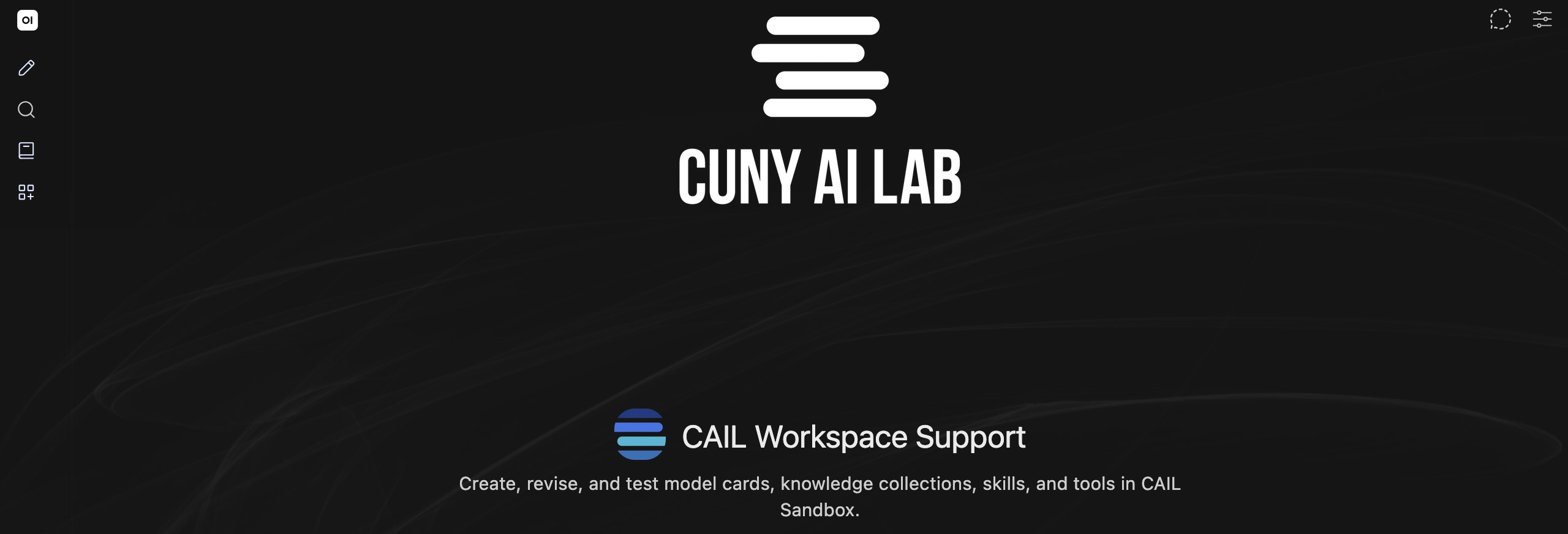
Create Revised Tool
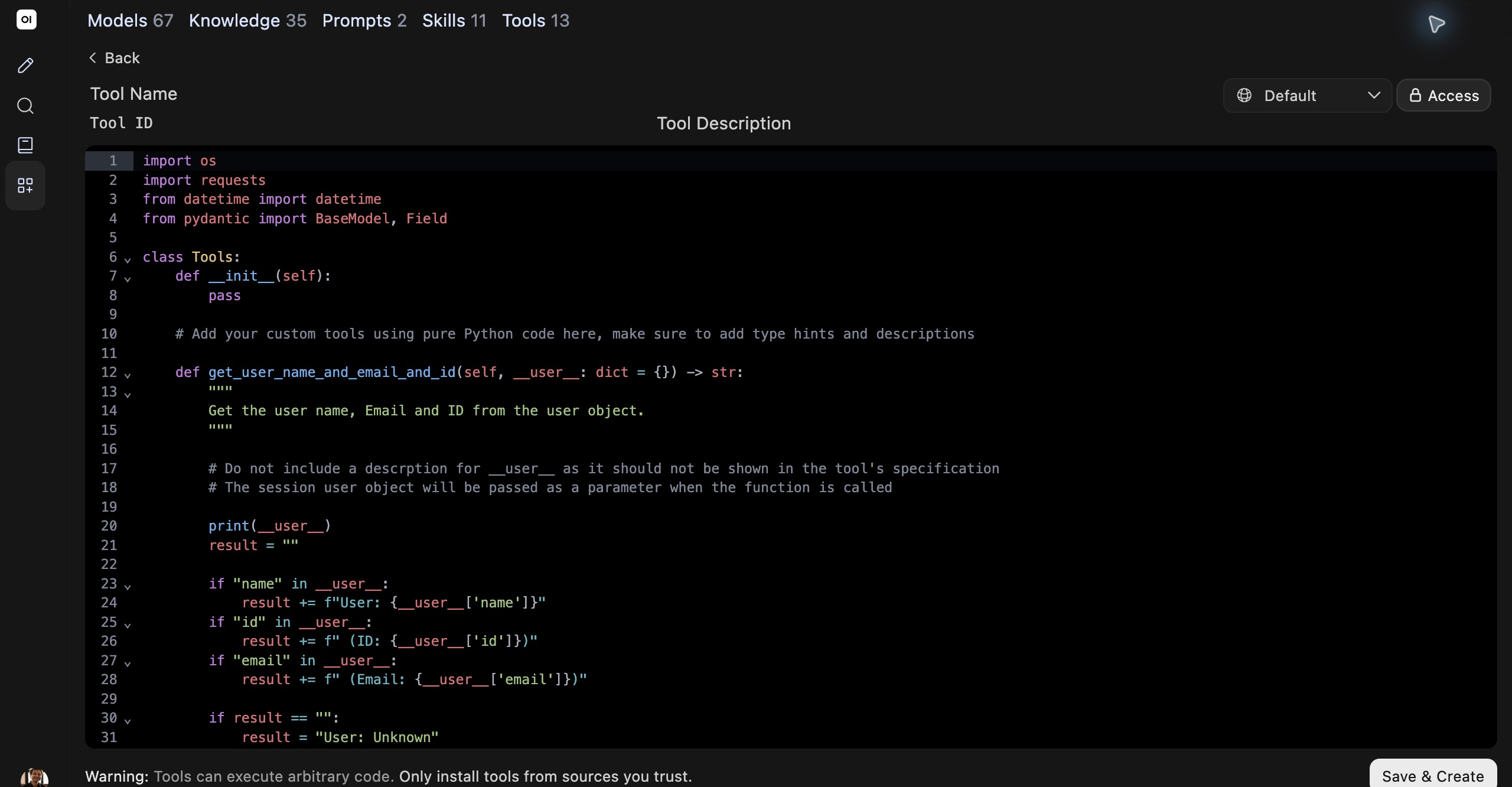
- For tool path only, open Workspace → Tools → Create
- Enter new Name and ID
- Replace all sample code with complete revised code
Current Tools list exposes Create at upper right; current form shown next
Create Revised Skill
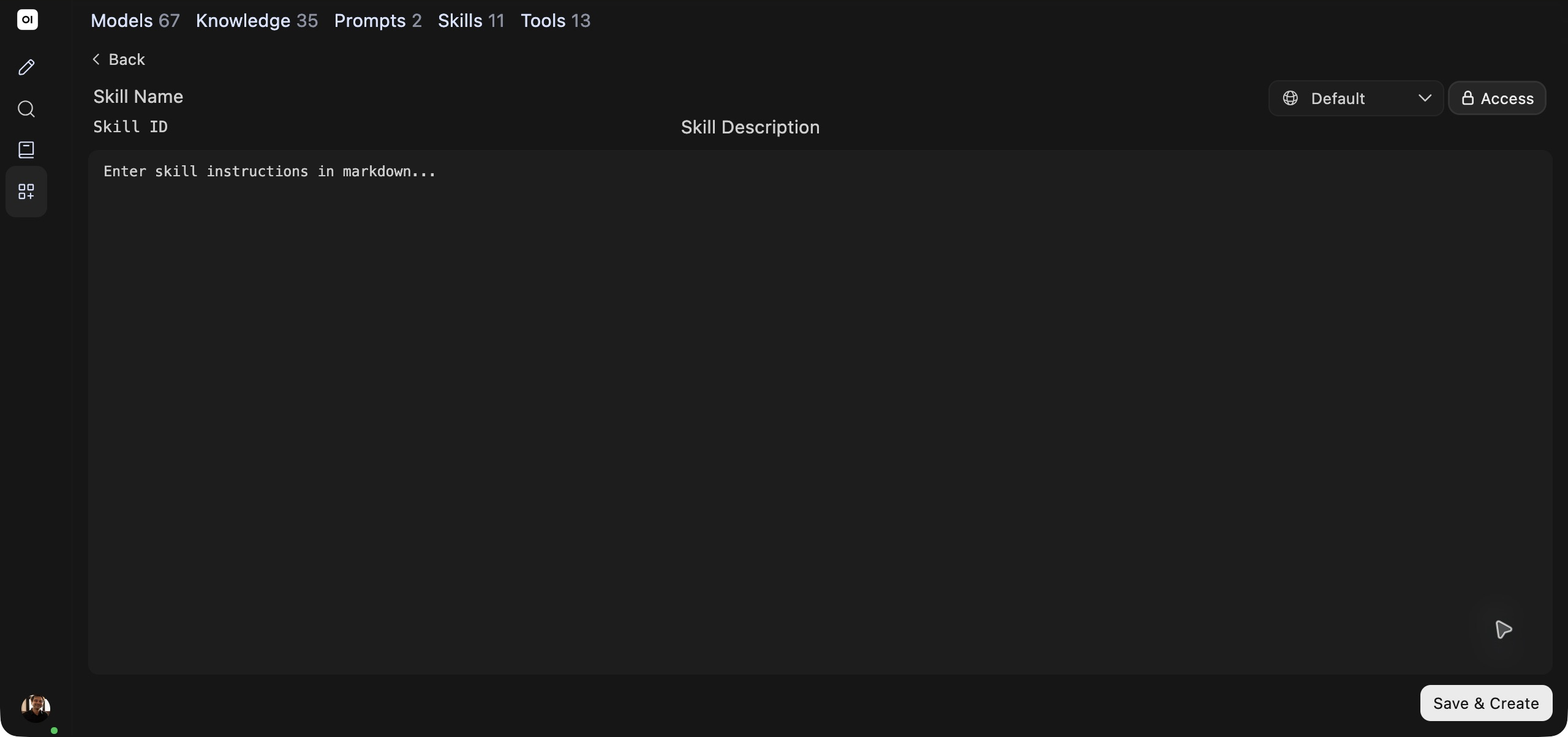
- For skill path only, open Workspace → Skills → Create
- Enter new Name and ID for version 2
- Paste complete revised Skill Instructions
Preserve your original copy; revise one check or part of its answer
Access and Save
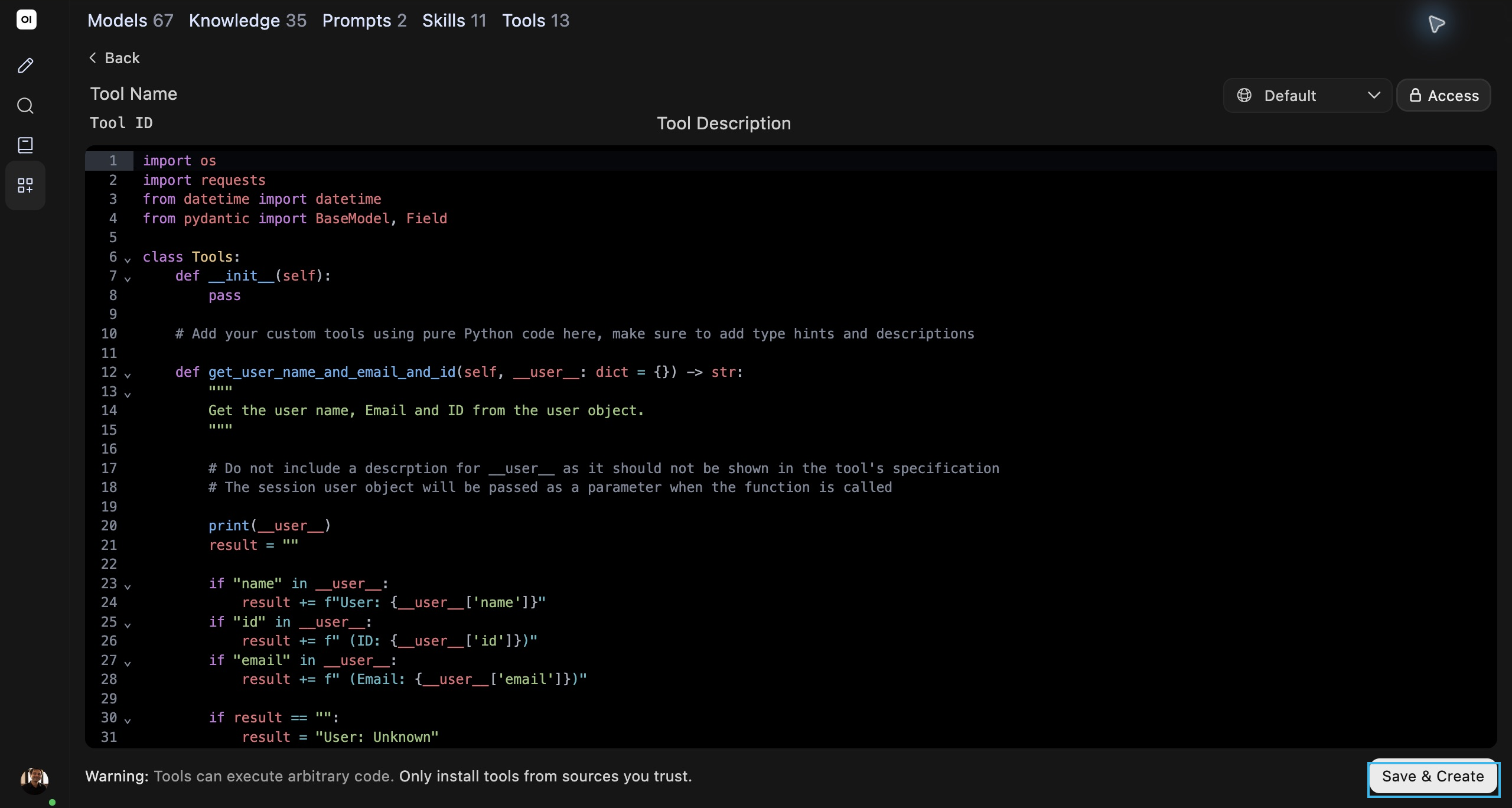
- Review Access at upper right
- Select Save & Create at lower right
- Check new item appears in its list
Tool form shown; skill form uses same corner locations. Both demonstrated resources were Private with no grants at inspection. Their owner later reported granting participant read access; post-change participant visibility remains unverified
Select New Version
- Open new chat with same saved model
- Select new item through Integrations → Tools or Skills according to chosen path
- Turn off older version of that item if selected
- Repeat identical input and record result
For a changed skill ID, update your system-prompt clause. Identify native loading or direct mention injection separately from observed effect